Using the built-in file manager
Short answer: Go to [Your Server] > Files. Select a file to open it in the editor, then Save Content. Use Upload to add files, and the ••• menu at the end of each row to Rename, Move, Copy, Archive, Unarchive, Download or Delete it.
Before you begin
Section titled “Before you begin”- You need: the server owner’s account, or a subuser with file permissions.
- Stop the server before editing config files. Many games rewrite them when they stop, undoing your changes.
- For uploads over 1 GB, or many files at once, use SFTP: see How to connect to your server using SFTP.
What this guide covers
Section titled “What this guide covers”- Editing a file
- Uploading and downloading
- Creating, moving and deleting files
- Zip files
Edit a file
Section titled “Edit a file”-
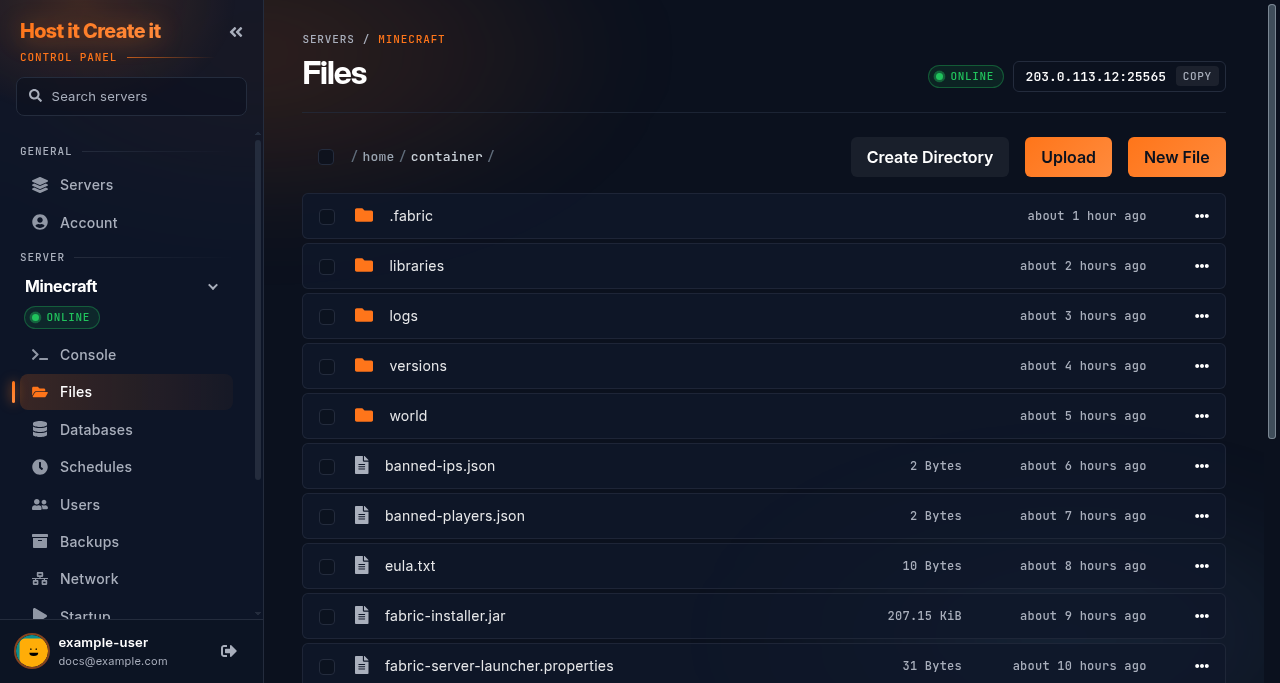
Go to [Game Panel] > [Your Server] > Files.
-
Open folders by selecting them. Use the path at the top to go back.
-
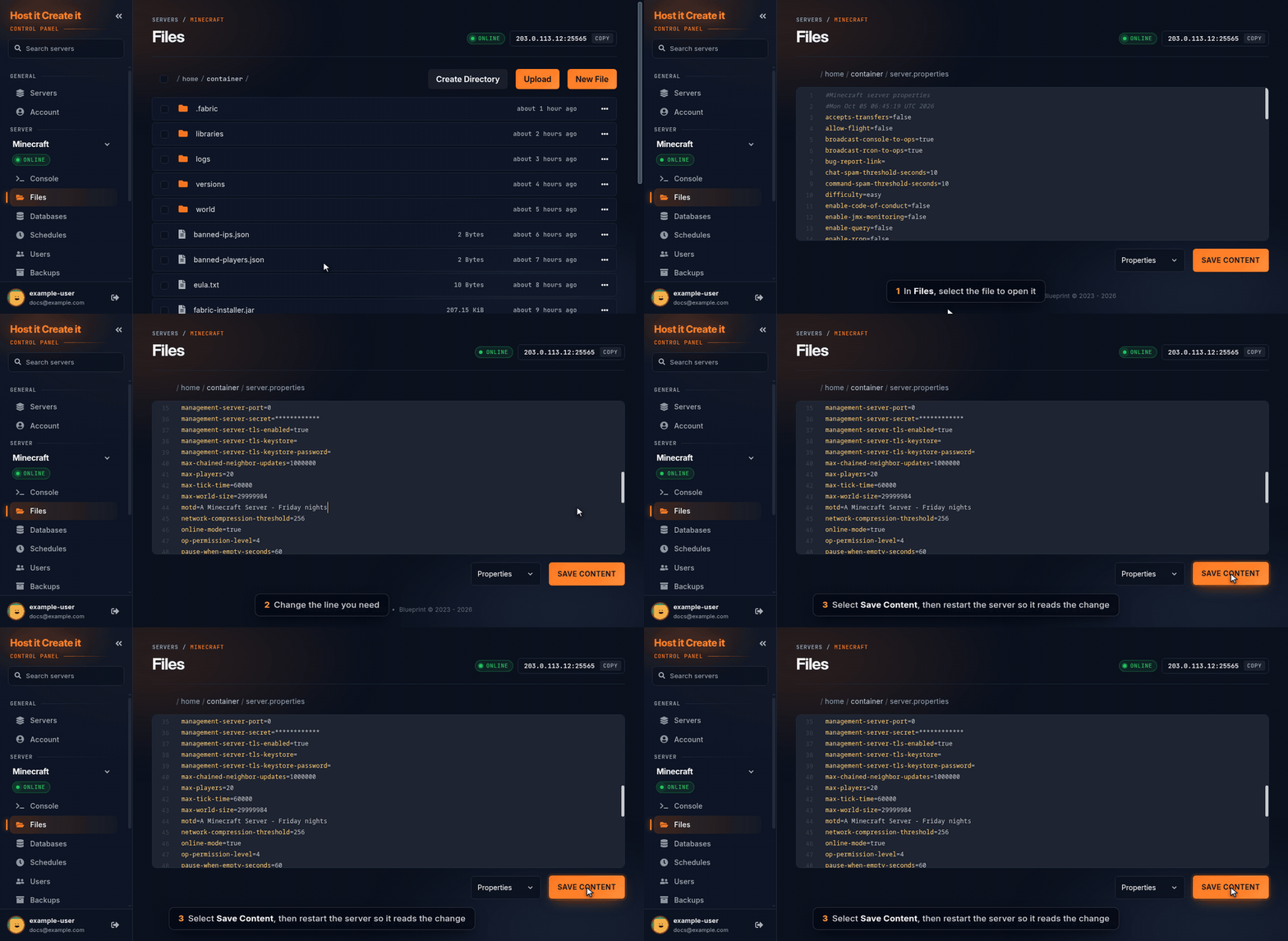
Select a file to open it in the editor.
-
Make your change, then select Save Content.
-
Restart the server to apply it.
Upload files
Section titled “Upload files”- Open the folder you want to upload into.
- Select Upload and choose files from your computer, or drag them onto the page. Progress shows at the bottom; Cancel Uploads stops them.
Create, rename, move, copy, delete
Section titled “Create, rename, move, copy, delete”- New File creates an empty file; Create Directory creates a folder.
- The ••• menu at the end of each row has Rename, Move, Copy, Permissions, Archive (or Unarchive for archives), Download and Delete.
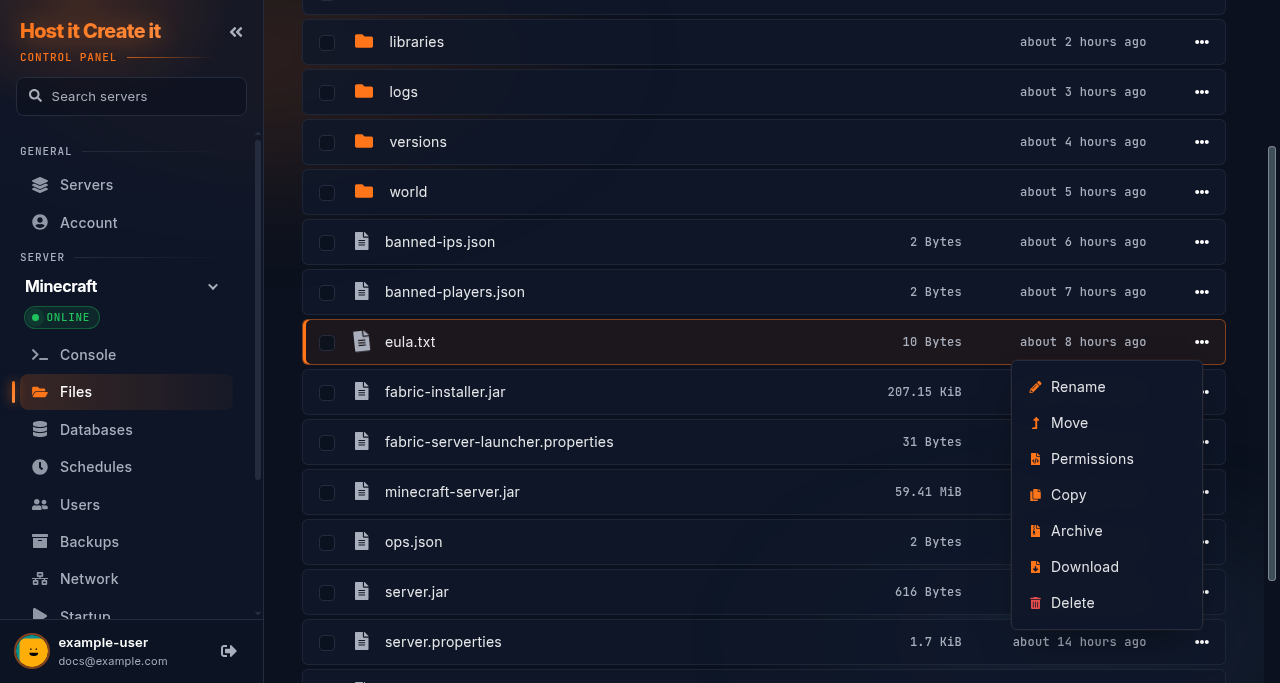
- Tick several files to act on them together (for example Delete or Archive).
Zip files
Section titled “Zip files”- Archive packs the selected files into one compressed file, which is quicker to download.
- Unarchive unpacks a zip or similar archive you’ve uploaded, in the same folder.
Expected result
Section titled “Expected result”Your change is saved, and after a restart the game uses it.
Common mistakes
Section titled “Common mistakes”- Editing while the server is running. The game may overwrite your edit when it stops.
- Editing a setting that’s also on Startup. The Startup value can overwrite the file at every start. See Changing startup settings.
- Uploading a whole world as loose files in the browser. Upload it as one zip and use Unarchive, or use SFTP.
Troubleshooting
Section titled “Troubleshooting”| What you see | What it means | What to do |
|---|---|---|
| “This directory seems to be empty.” | The folder has no files | Check you’re in the right folder |
| File opens as unreadable text | It’s not a text file (for example a world file) | Download it instead of editing |
| Upload fails | File too large, or disk full | Use SFTP; check disk use on the Console page |
| Your edit is gone after a restart | The game or Startup rewrote the file | Stop the server before editing, or change it on Startup |
When to contact support
Section titled “When to contact support”Contact support if files disappear that nobody deleted (check Activity first), or uploads fail with plenty of disk space left. Include the file path and the time. See How to contact support with useful diagnostic information.
Related guides
Section titled “Related guides”- How to connect to your server using SFTP
- Uploading an existing world
- How to create and restore a backup
Last reviewed: 2026-10-05 · Applies to: Game Panel (hici 0.4.2)