How to access your game server in the Game Panel
Short answer: Go to https://panel.hostitcreateit.com, select Sign in with Host It Create It and sign in with your Client Area account. Then select your server from the list. That opens its Console page, where you start, stop and manage it.
Before you begin
Section titled “Before you begin”- You need: a paid order in the Client Area (https://client.hostitcreateit.com). Your server is set up automatically after payment, usually within a few minutes.
- Have ready: the email address and password of your Client Area account.
- Time needed: about 2 minutes.
What this guide covers
Section titled “What this guide covers”- Signing in to the Game Panel
- Finding your server
- What the server pages are for
Paying invoices and changing your plan happen in the Client Area, not the Game Panel. See Game Panel and Client Area: which one do I use?.
Sign in
Section titled “Sign in”-
Select Sign in with Host It Create It, under the normal sign-in form. You are sent to the Client Area to sign in, then back to the Game Panel.
-
If you have turned on two-step verification for the Game Panel, enter the 6-digit code from your authenticator app. Signing in through the Client Area does not skip it.
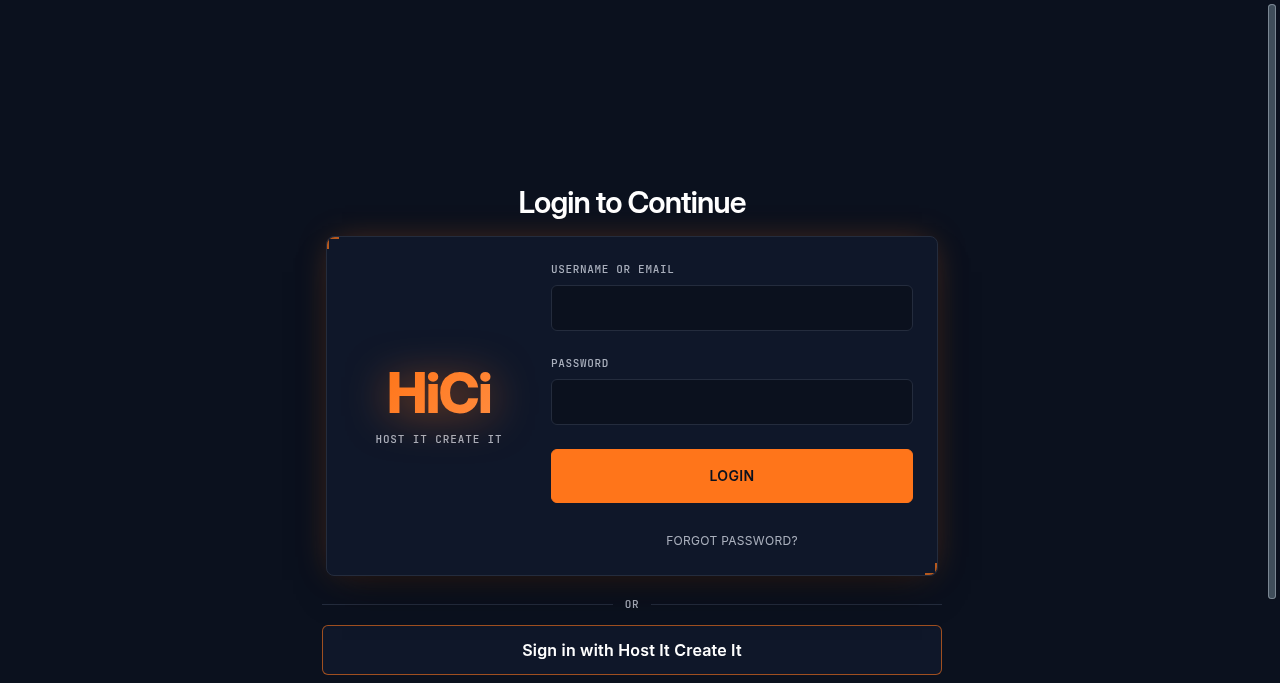
You can also sign in with your Game Panel username or email and Game Panel password, using the normal form. When your Game Panel account was created, we emailed you a Setup Your Account link to choose that password. You only need it for SFTP (see How to connect to your server using SFTP).
Open your server
Section titled “Open your server”-
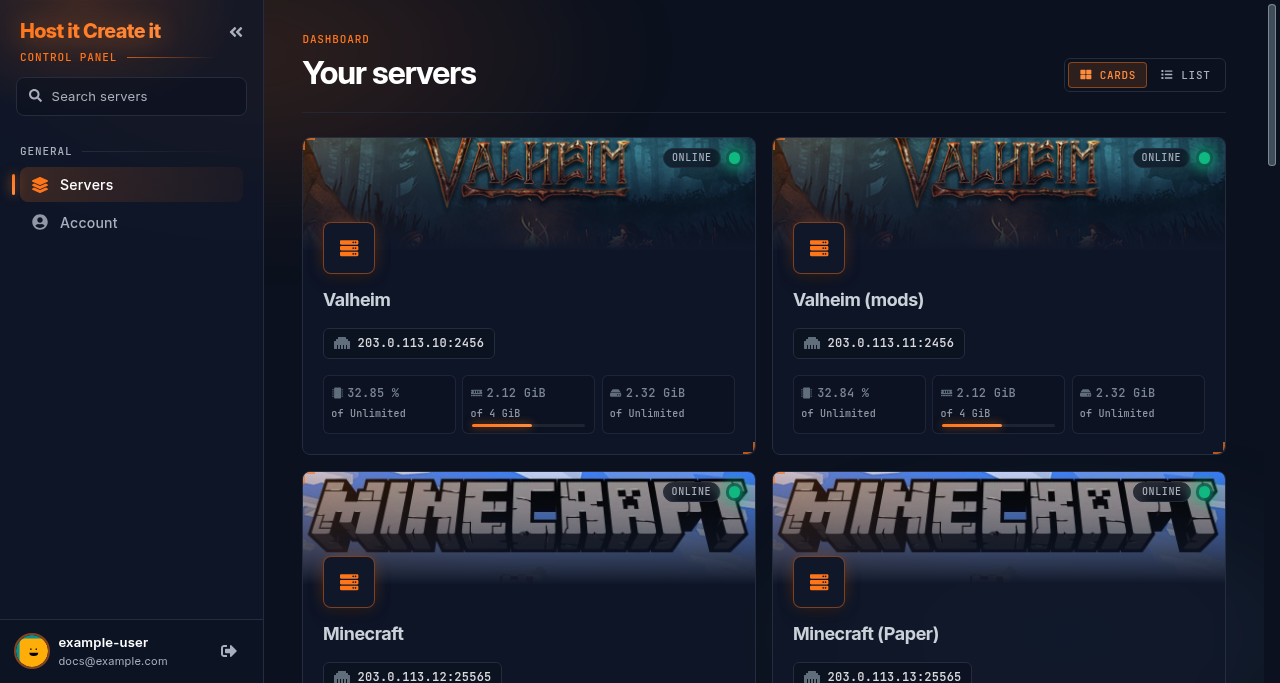
The Servers page lists every server you can access, with its name, address and status.
-
Select your server. Its Console page opens.
The server pages
Section titled “The server pages”On a computer, the menu is on the left. On a phone, use the bar at the bottom: Console, Files, Power (start, restart, stop) and Menu for everything else. You may see fewer pages if you are a subuser.
| Page | What it is for |
|---|---|
| Console | Live output from the game, a box to type server commands, the Start, Restart and Stop buttons, the server address, CPU, memory and disk use, and (for the owner) the Your plan card |
| Files | Browse, edit, upload and download your server’s files in the browser |
| Databases | Databases for games or plugins that need one (most games don’t) |
| Schedules | Automatic tasks, such as a nightly restart or backup |
| Users | Give friends or moderators access (subusers) |
| Backups | Create, download and restore backups |
| Network | The address and ports your server uses |
| Startup | Settings the game reads when it starts, such as the server name or password |
| Settings | SFTP login details, renaming the server, and reinstalling |
| Activity | A log of who did what in the panel, and when |
| Mods | Browse and install mods (Steam Workshop, Modrinth, CurseForge or Thunderstore, depending on the game) |
| Game Settings | Change common game options with menus and switches instead of editing files (supported games only) |
| Get help | Open a support ticket about this server with its details attached (server owner only) |
To move to another server, use the server name at the top of the menu or go back to Servers.
Expected result
Section titled “Expected result”You can see your server’s Console page, and the status next to its name shows Offline, Starting, Online or Stopping.
Common mistakes
Section titled “Common mistakes”- Using the Client Area for server tasks. The Client Area (client.hostitcreateit.com) handles orders, invoices and tickets. The Game Panel (panel.hostitcreateit.com) runs your server.
- Expecting the server straight after payment. It is installed automatically, which can take several minutes for large games.
- Sharing your login with friends. Add them as subusers instead (Users page), so you can remove their access later.
Troubleshooting
Section titled “Troubleshooting”| What you see | What it means | What to do |
|---|---|---|
| “There’s no Panel account for this email yet.” | Your Game Panel account is created with your first server, so it doesn’t exist yet, or your servers are under a different email | Wait 15 minutes after payment. If your servers are under another email, sign in with your Game Panel password instead |
| “Please verify your email address first.” | Your Client Area email is not verified | Open the verification link the Client Area emailed you, then sign in again |
| Wrong password on the normal form | The Game Panel password is separate from your Client Area password | Use Sign in with Host It Create It, or Forgot password? |
| No servers in the list | The server is not set up yet | Wait 15 minutes after payment, then check the service in the Client Area |
| Server pages say Connecting and the console never loads | The panel can’t reach the machine your server runs on | Check status.hostitcreateit.com, then contact support |
When to contact support
Section titled “When to contact support”Contact support if your server is not in the list 30 minutes after payment, or if sign-in or password reset emails do not arrive within 15 minutes (check spam first). Include the email address on your order and your invoice number. See How to contact support with useful diagnostic information.
Related guides
Section titled “Related guides”- Your first 15 minutes: from order to playing
- How to start, stop and restart your server safely
- How to find your server IP address and connection port
- Giving a friend or moderator access with subusers
Last reviewed: 2026-10-05 · Applies to: Game Panel (hici 0.4.2, HiCiTools 3.0.2)