Updating your game server
Short answer: Most Steam games update themselves every time the server starts, so after a game patch, restart the server. Minecraft and a few others use a version setting on the Startup page: change it, then reinstall. Back up first, because updates can break mods.
Before you begin
Section titled “Before you begin”- You need: the server owner’s account, or a subuser with the start, stop and startup permissions.
- Do first: create a backup (see How to create and restore a backup).
- Time needed: 5 to 20 minutes.
What this guide covers
Section titled “What this guide covers”- How updates work for each kind of game
- Updating after a game patch
- Staying on an older version
How updates work
Section titled “How updates work”| Game type | How it updates |
|---|---|
| Steam games (Valheim, 7 Days to Die, Palworld, Conan Exiles, Space Engineers, Enshrouded, Abiotic Factor and others) | An auto-update setting on Startup (called “Auto Update” or similar) is on by default. The game checks for updates each time the server starts |
| ARK: Survival Evolved and Project Zomboid | Auto-update is off by default. Turn it on in Startup, or reinstall to update |
| Minecraft (Vanilla, Paper, Fabric, Forge, NeoForge) | The version is set on Startup (“Minecraft Version” or “Server Version”). latest means the newest version at the time of the last install. To change version, change the setting and reinstall |
| Vintage Story | “Release version” on Startup |
Update a Steam game
Section titled “Update a Steam game”-
Create a backup.
-
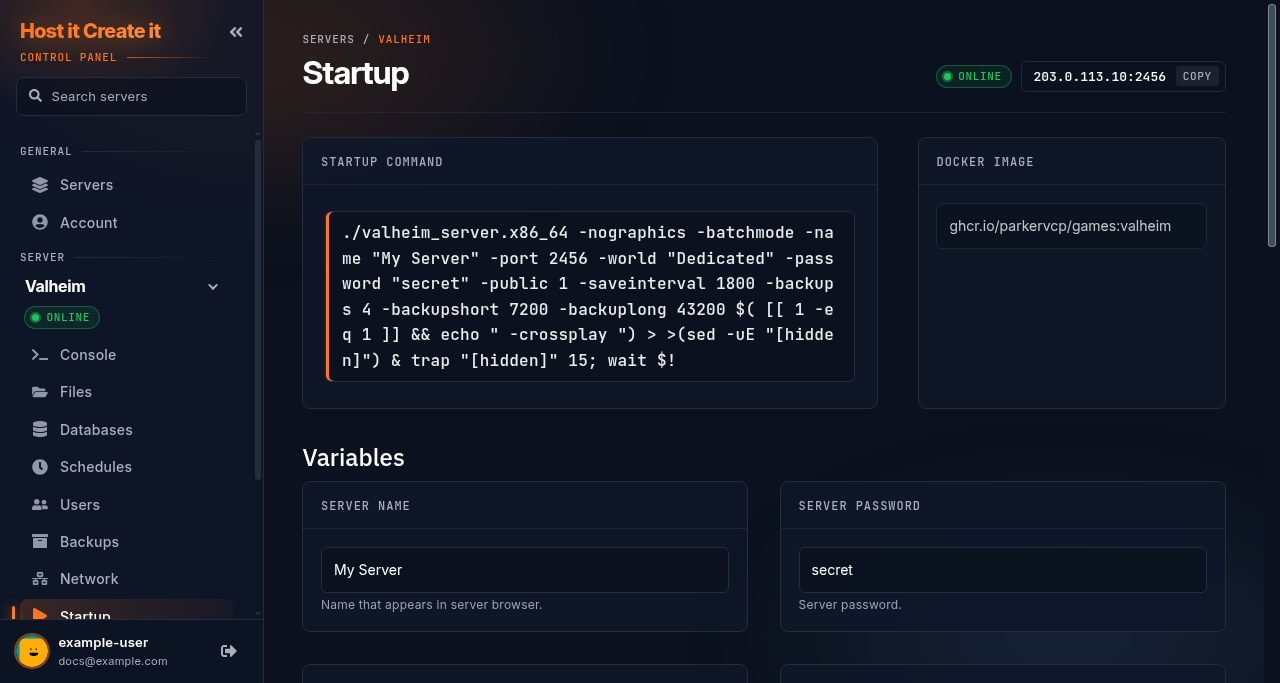
Check that the auto-update setting on Startup is on.
-
Select Restart on the Console page.
-
Watch the console: you’ll see the update download before the game starts.
Change the Minecraft version
Section titled “Change the Minecraft version”- Create a backup and download it.
- Stop the server.
- On Startup, change “Minecraft Version” (or “Server Version”) to the version you want, for example
1.21.1, orlatest. - Go to Settings and select Reinstall Server, then Yes, reinstall server. This downloads the chosen version. Your worlds are normally kept, but see How to reinstall or reset a game server first.
- Start the server.
Expected result
Section titled “Expected result”The console shows the new version number when the server starts, and players on the same version can join.
Common mistakes
Section titled “Common mistakes”- Updating before mods support the new version. Check your mods first.
- Leaving auto-update off and forgetting. Players on the new version won’t be able to join an old server.
- Changing the Minecraft version without reinstalling. The version setting is applied by the install step.
Troubleshooting
Section titled “Troubleshooting”| What you see | What it means | What to do |
|---|---|---|
| Players get “version mismatch” | Server and players are on different versions | Update the server, or the players’ game |
| Server won’t start after an update | Usually a mod not yet updated | Remove recently added or outdated mods; see My server will not start |
| Update download fails in the console | Steam was busy or unreachable | Restart again in a few minutes |
When to contact support
Section titled “When to contact support”Contact support if the update download fails repeatedly, or the console shows the old version after a successful restart. Include the console lines from the start of the update. See How to contact support with useful diagnostic information.
Related guides
Section titled “Related guides”Last reviewed: 2026-10-05 · Applies to: Game Panel (hici 0.4.2)