Setting up automatic restarts and backups with schedules
Short answer: Go to [Your Server] > Schedules and select Create schedule. Enter a Name, choose how often (for example Daily), set the Time and Time zone, check the summary of the next run times, and select Create schedule. Then open the schedule and add a task with New Task, for example Send power action > Restart the server.
A schedule runs tasks automatically: restarts, backups or console commands.
Before you begin
Section titled “Before you begin”- You need: the server owner’s account, or a subuser with the schedule permissions.
- Your server already has a Daily backup schedule. You don’t need to make one for backups.
- Time needed: 5 minutes.
What this guide covers
Section titled “What this guide covers”- Creating a schedule
- Adding tasks to it
- Time zones and clock changes
Create the schedule
Section titled “Create the schedule”-
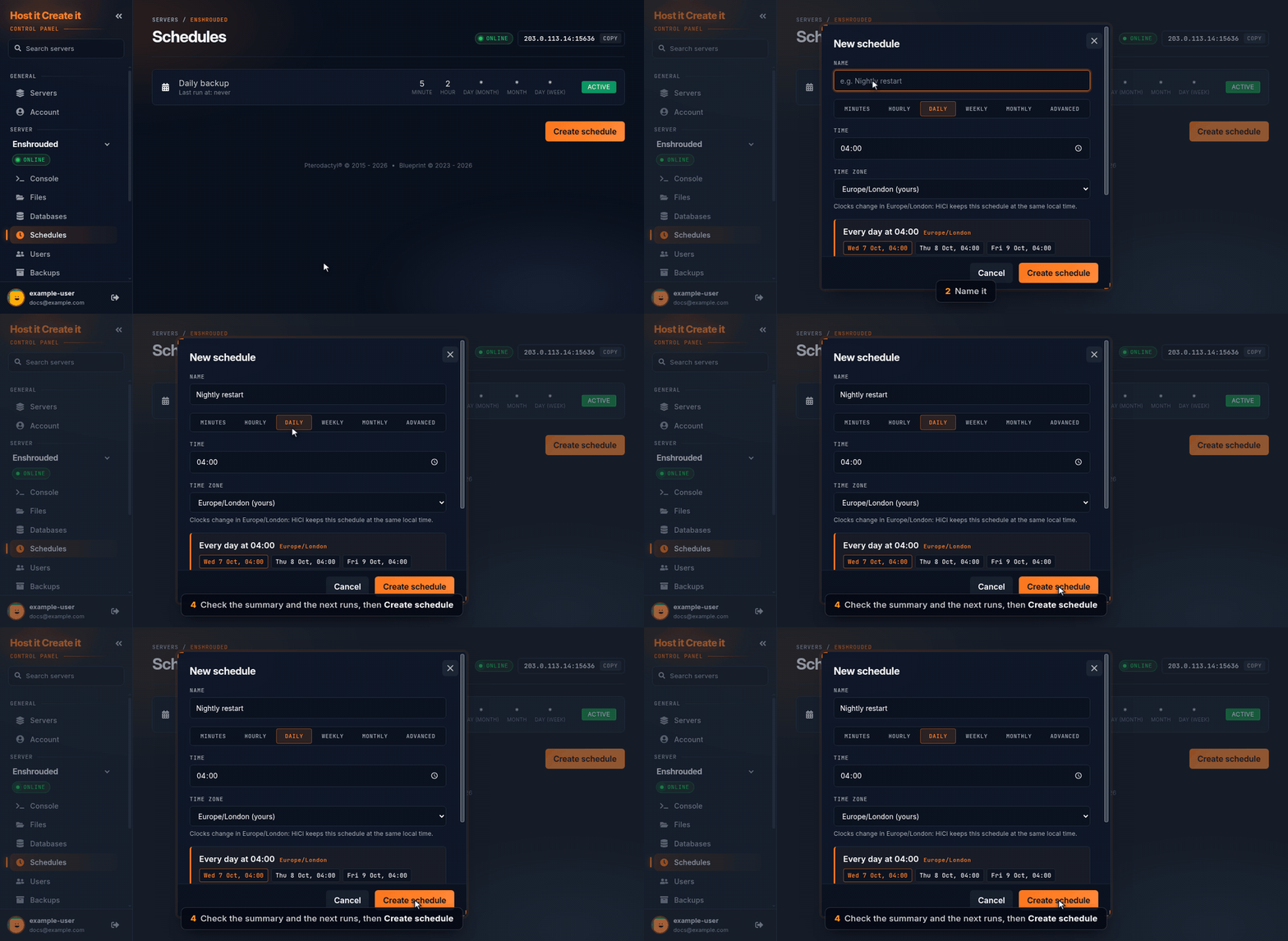
Go to [Game Panel] > [Your Server] > Schedules.
-
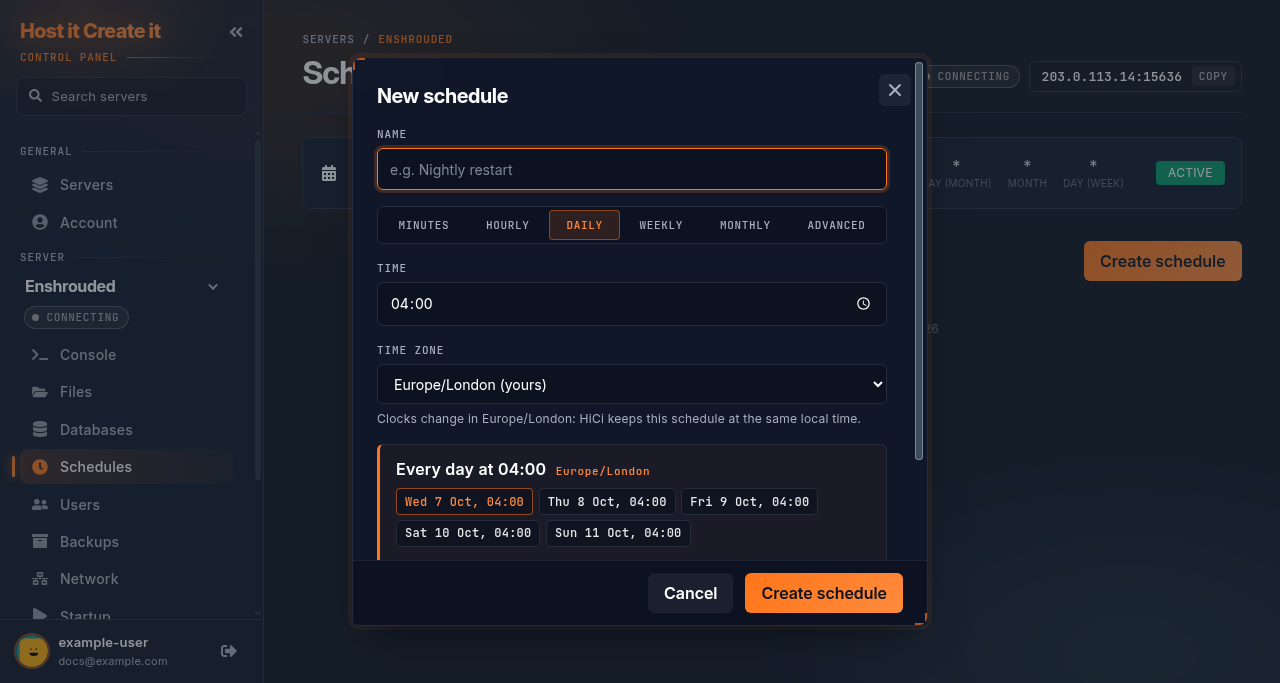
Select Create schedule.
-
Enter a Name, for example
Nightly restart. -
Choose how often with the buttons under the name: Minutes, Hourly, Daily, Weekly, Monthly or Advanced. Fill in the details that appear (for Daily: the Time).
-
Check Time zone. It starts on your own time zone, marked “(yours)”. The schedule keeps the same local time when the clocks change.
-
Check the summary at the bottom, for example “Every day at 04:00”, and the next five run times listed under it.
-
Select Create schedule.
Add tasks
Section titled “Add tasks”A schedule with no tasks does nothing. The Schedules page warns you if one has none.
- Select the schedule in the list.
- Select New Task.
- Choose an Action:
- Send power action, then Restart the server (or start or stop)
- Send command, then type a console command in Payload, for example a save or warning message
- Create backup
- Optional: set Time offset (in seconds) to wait after the previous task. For example: a warning message, then 60 seconds later a restart.
- Save the task. Add more tasks in the order they should run.
A good nightly restart
Section titled “A good nightly restart”| Task | Action | Payload | Time offset |
|---|---|---|---|
| 1 | Send command | Your game’s “server restarting in 1 minute” message | 0 |
| 2 | Send command | Your game’s save command (see your game’s guide) | 50 |
| 3 | Send power action | Restart the server | 10 |
Expected result
Section titled “Expected result”The schedule appears in the list with its next run time, and after it runs, the Activity page shows what it did.
Common mistakes
Section titled “Common mistakes”- Forgetting to add a task. The schedule runs but does nothing.
- Restarting during the nightly backup. Backups run between 02:00 and 04:00 UTC. Pick a different time for restarts.
- Using Terminate the server. It skips saving.
Troubleshooting
Section titled “Troubleshooting”| What you see | What it means | What to do |
|---|---|---|
| “This schedule has no tasks, so nothing happens when it runs.” | No tasks yet | Add one with New Task |
| Runs at the wrong hour | Wrong time zone chosen | Edit the schedule and check Time zone |
| Schedule shows as custom and can’t be edited with presets | It was written in cron, by hand | Edit it under Advanced, or delete and recreate it |
When to contact support
Section titled “When to contact support”Contact support if a schedule with tasks doesn’t run at the times the summary showed. Include the schedule name and the time it should have run. See How to contact support with useful diagnostic information.
Related guides
Section titled “Related guides”Last reviewed: 2026-10-05 · Applies to: Game Panel (hici 0.4.2)