Valheim server guide
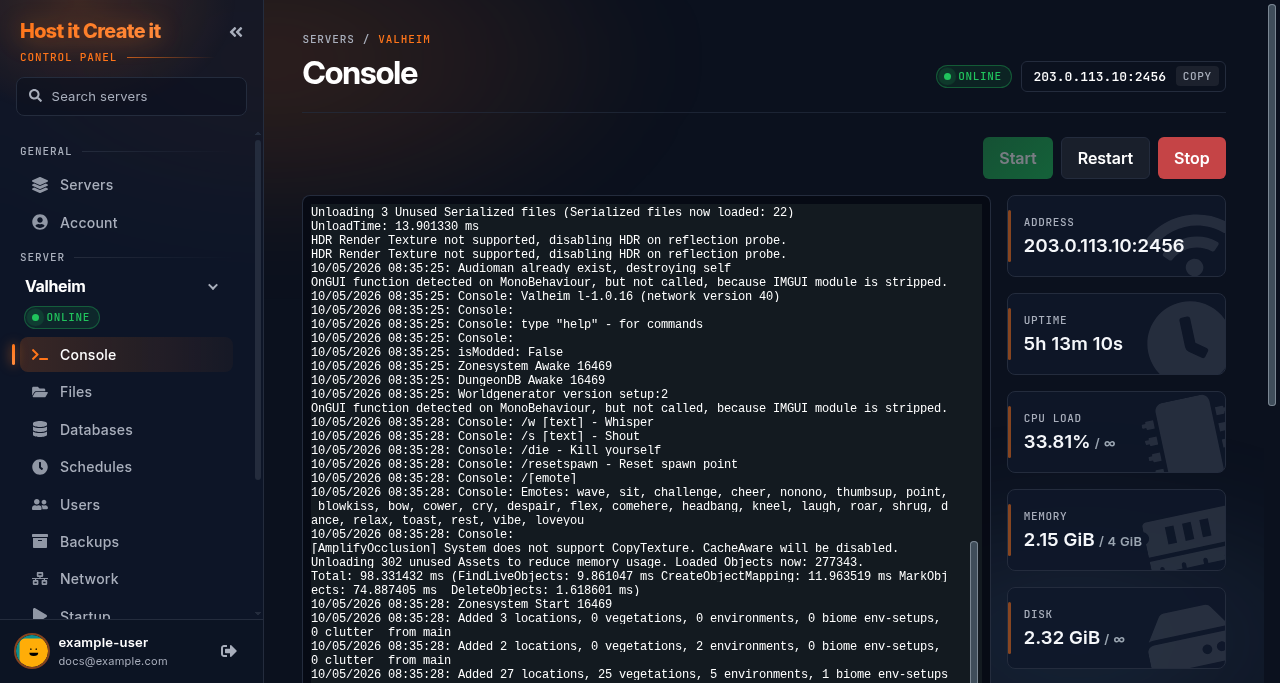
Short answer: Start the server and wait for Game server connected in the console. Players join from Valheim’s Join Game tab with your address and the server password from Startup. To make someone an admin, add their player ID to adminlist.txt.
Before you begin
Section titled “Before you begin”- You need: Valheim. With Enable Crossplay on, Steam and Xbox / PC Game Pass players can play together.
- Two versions are available: Valheim (unmodded) and Valheim (BepInEx mods), which can load mods from Thunderstore. Changing version is done by ticket.
- If you’re new to the panel, read Your first 15 minutes: from order to playing first.
Server facts
Section titled “Server facts”| Versions we offer | Valheim (default) · Valheim (BepInEx mods) |
| Backups keep | /.config/unity3d/IronGate/Valheim/ |
Valheim
Section titled “Valheim”| Ready when the console shows | 10/05/2026 08:35:28: DungeonDB Start 16469 |
| Stop command | sent automatically by Stop |
| Extra ports | game port + 1 (UDP, query) |
| Mods page | No: see the Mods section below |
| Game Settings page | No |
| Tested in our lab | 2026-10-05: installed (2.5 GB), reached its ready message |
Startup settings
Section titled “Startup settings”| Setting | You can change it | Default |
|---|---|---|
| Server Name | Yes | Valheim Server - hostitcreateit.com |
| Server Password | Yes | secret |
| World Name | Yes | Dedicated |
| Public Server | Yes | 1 |
| App ID | No | 896660 |
| Auto Update | Yes | 1 |
| Enable Crossplay | Yes | 1 |
| Backup Interval | Yes | 1800 |
| Backup Count | Yes | 4 |
| Backup Shorttime | Yes | 7200 |
| Backup Longtime | Yes | 43200 |
| Beta Branch | Yes | (empty) |
| Beta Password | Yes | (empty) |
Valheim (BepInEx mods)
Section titled “Valheim (BepInEx mods)”| Ready when the console shows | 10/05/2026 08:38:18: Game server connected |
| Stop command | sent automatically by Stop |
| Extra ports | game port + 1 (UDP, query) |
| Mods page | Thunderstore: installed into the right folder |
| Game Settings page | No |
| Tested in our lab | 2026-10-05: installed (2.5 GB), reached its ready message |
Startup settings
Section titled “Startup settings”| Setting | You can change it | Default |
|---|---|---|
| Server Name | Yes | Valheim Server - hostitcreateit.com |
| Server Password | Yes | secret |
| World Name | Yes | Dedicated |
| Public Server | Yes | 1 |
| Auto Update | Yes | 1 |
| Enable Crossplay | Yes | 0 |
| Beta Branch | Yes | (empty) |
| Beta Password | Yes | (empty) |
| Backup Interval | Yes | 1800 |
| Backup Count | Yes | 4 |
| Backup Shorttime | Yes | 7200 |
| Backup Longtime | Yes | 43200 |
| [System] App ID | No | 896660 |
| ModPack | Yes | (empty) |
Quick start
Section titled “Quick start”- On Startup, check Server Name, World Name and Server Password. The password must be at least 5 characters and must not contain the server name.
- Select Start. Wait for
Game server connected: the world is still loading until then, even though the status shows Online. - In Valheim: Start Game, choose a character, then Join Game > Join IP, and enter your address (for example
203.0.113.10:2456). Enter the server password when asked.
With Public Server on, the server also appears in the Community list by name. That can take several minutes after a start.
Admins, bans and the allow list
Section titled “Admins, bans and the allow list”Three files in .config/unity3d/IronGate/Valheim/ control who can do what. Each takes one player ID per line:
| File | Effect |
|---|---|
adminlist.txt |
Admins: can use the in-game console’s kick, ban, save and similar commands |
bannedlist.txt |
Banned players |
permittedlist.txt |
If not empty, only these players can join |
To add someone:
- Ask them to join once. The console shows their player ID when they connect.
- Stop the server.
- In Files, open the list and add the ID on its own line, exactly as the console showed it.
- Save Content and start the server.
Worlds
Section titled “Worlds”- Worlds are saved in
.config/unity3d/IronGate/Valheim/worlds_local/, as<World Name>.dband<World Name>.fwl. Backups keep this folder. - New world, keep the old one: change World Name on Startup and restart. Change it back to return.
- Bring in a single-player world: on your PC, copy the two files for your world from
%userprofile%/AppData/LocalLow/IronGate/Valheim/worlds_local/, upload both intoworlds_localwith Files or SFTP while the server is stopped, and set World Name to the world’s name. See Uploading an existing world. - Valheim also makes its own world backups inside
worlds_local(Backup Interval, Backup Count and related settings on Startup). These are separate from the panel’s backups.
Mods (BepInEx version only)
Section titled “Mods (BepInEx version only)”On Valheim (BepInEx mods), the Mods page browses Thunderstore and installs mods with their dependencies, without stopping the server. Restart afterwards. Every player needs the same mods: most players use a mod manager such as r2modman. See Players need the same mods: joining a modded server.
The unmodded Valheim version doesn’t load mods.
Restarts and updates
Section titled “Restarts and updates”- Stop saves the world and shuts down cleanly.
- Auto Update on Startup is on by default, so a restart installs Valheim updates. After a big game update, BepInEx mods may need updating too.
Common problems
Section titled “Common problems”| Problem | Cause | Fix |
|---|---|---|
| “Incompatible version” when joining | Player and server versions differ | Restart the server to update; players update through Steam or Xbox |
| Password refused | Password shorter than 5 characters or containing the server name | Change Server Password on Startup and restart |
| Joined but the world is empty | World Name changed, so a new world was created | Set World Name back |
| Not in the Community list | Still starting, or Public Server off | Join by IP; see My server is not showing in the game browser |
| Mods don’t load (BepInEx) | Player and server mods differ, or the server wasn’t restarted | Match mods and versions; restart |
When to contact support
Section titled “When to contact support”Contact support if the server doesn’t reach Game server connected, or nobody can join by IP with the correct password. Include the console output from the start. See How to contact support with useful diagnostic information.
Related guides
Section titled “Related guides”- Adding your server to your Steam favourites
- Installing mods from the Mods page
- How to create and restore a backup
- Changing startup settings
Last reviewed: 2026-10-05 · Applies to: Game Panel (hici 0.4.2, HiCiTools 3.0.2)